
What is the Model Context Protocol?
The Model Context Protocol (MCP) is an open-source standard developed by Anthropic for connecting AI applications to external systems. Using MCP, AI applications like Claude, ChatGPT, or any MCP-compatible coding assistant can connect to data sources (e.g., local files, databases), tools (e.g., search engines, APIs), and workflows (e.g., specialised prompts).
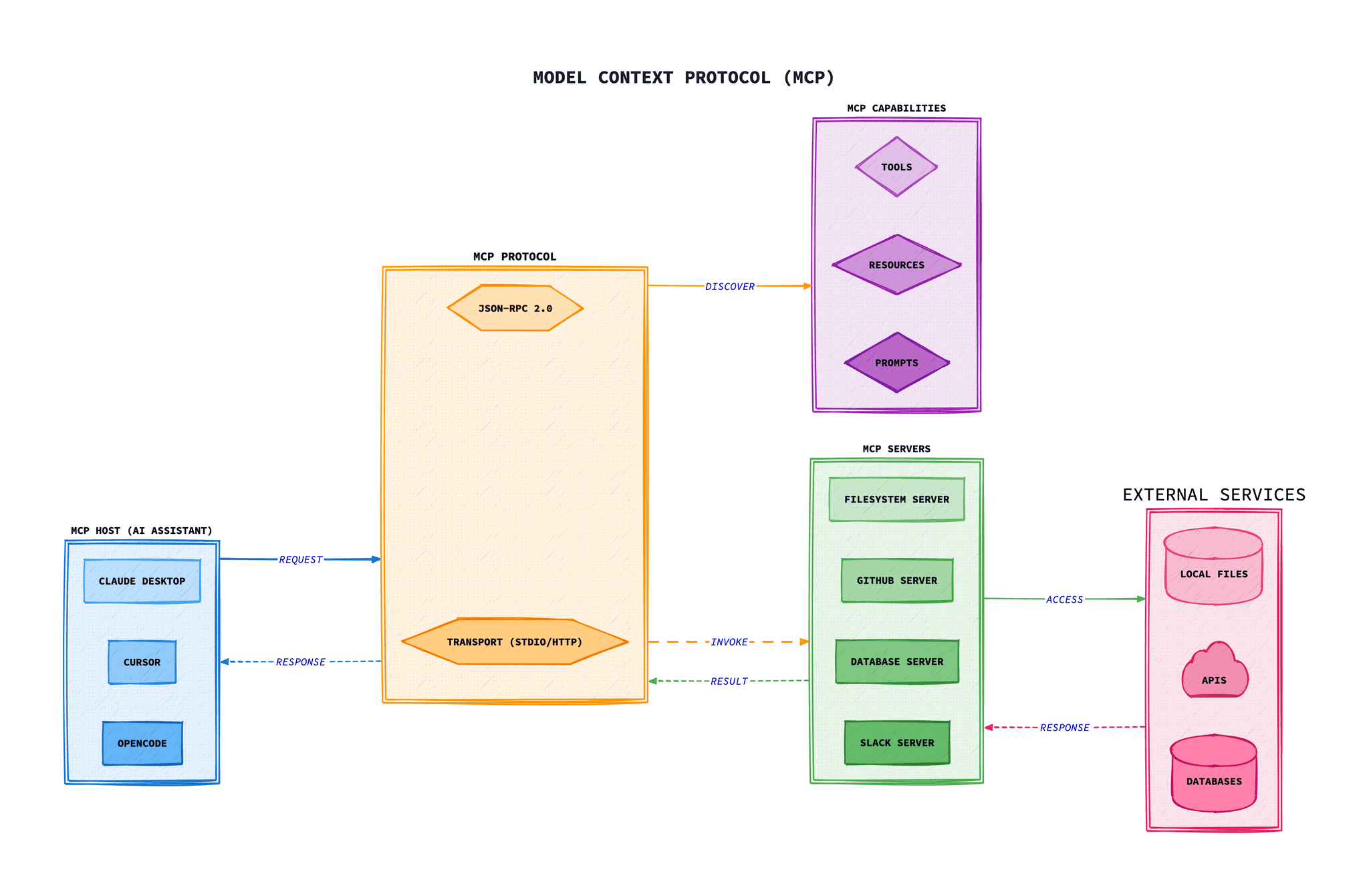
Think of MCP like a USB-C port for AI applications. Just as USB-C provides a standardised way to connect electronic devices, MCP provides a standardised way to connect AI applications to external systems.
Before MCP, each AI tool had its own proprietary way of connecting to external services. This meant developers had to learn different integration patterns for each platform, and tool creators had to build separate integrations for every AI assistant. MCP solves this by providing a universal protocol that works across all compatible platforms.
How MCP Works
MCP operates on a client-server architecture:
- MCP Clients: AI applications (like OpenCode, Cursor, or Claude Desktop) that consume capabilities from MCP servers.
- MCP Servers: Programs that expose specific capabilities (tools, resources, prompts) through the MCP protocol.
- Transport Layer: The communication method between clients and servers (stdio for local, HTTP/SSE for remote).
Why MCP Matters for Developers
MCP enables key capabilities for AI-assisted development:
Real-Time Data Access
AI agents can access your Google Calendar, Notion, databases, and other live data sources to provide contextually relevant assistance.
Tool Integration
Connect AI to search engines, browsers, 3D design tools, deployment platforms, and virtually any service with an API.
Reduced Development Time
Build integrations once using the MCP standard, and they work across all compatible AI platforms automatically.
Enhanced AI Capabilities
Transform AI from a knowledge-limited assistant to an active agent that can take actions and access current information.
MCP Capabilities: Tools, Resources, and Prompts
MCP servers can expose three types of capabilities to AI clients:
Tools
Functions that AI models can execute to perform actions like searching, file operations, or API calls.
Resources
Structured data sources that can be read and referenced by the AI model during conversations.
Prompts
Templated messages and workflows that guide AI interactions for specific use cases.
Platform Comparison
Here's a comparison of MCP support across the major AI coding platforms:
| Platform | Config File | Transport Types | Difficulty |
|---|---|---|---|
| OpenCode | opencode.json | Local (stdio), Remote (HTTP), OAuth | Easy |
| Cursor | mcp.json | stdio, SSE, Streamable HTTP | Easy |
| Claude Desktop | claude_desktop_config.json | stdio | Medium |
| Windsurf | mcp_config.json | stdio, HTTP | Easy |
| Continue | .continue/mcpServers/*.yaml | stdio, SSE, Streamable HTTP | Medium |
| Zed | settings.json | stdio, HTTP | Easy |
Setting Up MCP in OpenCode
OpenCode is an open source AI coding agent available as a terminal-based interface, desktop app, or IDE extension. It supports both local and remote MCP servers with OAuth authentication.
Local MCP Server Configuration
Add local MCP servers to your opencode.json configuration file:
{
  "$schema": "https://opencode.ai/config.json",
  "mcp": {
    "filesystem": {
      "type": "local",
      "command": ["npx", "-y", "@modelcontextprotocol/server-filesystem", "/path/to/directory"],
      "enabled": true
    }
  }
}
Remote MCP Server Configuration
For cloud-hosted MCP servers, use the remote configuration:
{
  "$schema": "https://opencode.ai/config.json",
  "mcp": {
    "context7": {
      "type": "remote",
      "url": "https://mcp.context7.com/mcp",
      "enabled": true
    }
  }
}
Using MCP Tools
Once configured, reference the MCP server in your prompts:
use the context7 tool to search the Next.js documentation for server componentsTip
You can also add instructions to your AGENTS.md file to automatically use specific MCP tools for certain tasks.
Setting Up MCP in Cursor
Cursor is an AI-first code editor with extensive MCP support, including one-click installation from their MCP server collection.
Configuration File Location
- Project-specific:
.cursor/mcp.json - Global:
~/.cursor/mcp.json
Node.js MCP Server
{
  "mcpServers": {
    "filesystem": {
      "command": "npx",
      "args": ["-y", "@modelcontextprotocol/server-filesystem", "/path/to/directory"],
      "env": {
        "API_KEY": "your-api-key"
      }
    }
  }
}
Remote Server Configuration
{
  "mcpServers": {
    "remote-api": {
      "url": "https://api.example.com/mcp",
      "headers": {
        "Authorization": "Bearer ${env:MY_API_TOKEN}"
      }
    }
  }
}
Variable Interpolation
Cursor supports variable interpolation in configuration:
${env:NAME}- Environment variables${userHome}- Home directory path${workspaceFolder}- Project root directory
Setting Up MCP in Claude Desktop
Claude Desktopis Anthropic's official desktop application, providing native MCP support for file system access and other tools.
Configuration File Location
- macOS:
~/Library/Application Support/Claude/claude_desktop_config.json - Windows:
%APPDATA%\Claude\claude_desktop_config.json
Filesystem Server Example
{
  "mcpServers": {
    "filesystem": {
      "command": "npx",
      "args": [
        "-y",
        "@modelcontextprotocol/server-filesystem",
        "/Users/username/Desktop",
        "/Users/username/Downloads"
      ]
    }
  }
}
Security Note
Only grant access to directories you're comfortable with Claude reading and modifying. The server runs with your user account permissions.
Verification
After configuration, restart Claude Desktop. You should see an MCP server indicator in the bottom-right corner of the conversation input box. Click it to view available tools.
Setting Up MCP in Windsurf
Windsurf by Codeium features Cascade, an intelligent agent with native MCP integration. It supports both stdio and HTTP transport types.
Plugin Store Installation
The easiest way to add MCP servers in Windsurf is through the Plugin Store:
- Click the Plugins icon in the Cascade panel
- Browse available MCP plugins
- Click Install on your desired plugin
- Press the refresh button after installation
Manual Configuration
For custom servers, edit ~/.codeium/windsurf/mcp_config.json:
{
  "mcpServers": {
    "github": {
      "command": "npx",
      "args": ["-y", "@modelcontextprotocol/server-github"],
      "env": {
        "GITHUB_PERSONAL_ACCESS_TOKEN": "<YOUR_TOKEN>"
      }
    }
  }
}
HTTP Server Configuration
{
  "mcpServers": {
    "figma": {
      "serverUrl": "https://your-server-url/mcp"
    }
  }
}
Tool Limit
Cascade has a limit of 100 total tools. You can toggle individual tools on/off from the plugin's Tools tab or Windsurf Settings.
Setting Up MCP in Continue
Continue is an open source AI code assistant for VS Code and JetBrains. It uses YAML configuration for MCP servers.
Quick Start Example
Create a folder .continue/mcpServers/ in your workspace and add a YAML file:
name: Playwright mcpServer
version: 0.0.1
schema: v1
mcpServers:
  - name: Browser search
    command: npx
    args:
      - "@playwright/mcp@latest"
Transport Types
Continue supports multiple transport types:
# SSE Transport# Streamable HTTP Transport# Streamable HTTP Transport# Streamable HTTP Transport# Streamable HTTP Transportport
mcpServers:
  - name: HTTP Server
    type: streamable-http
    url: https://your-server.com
Using Secrets
mcpServers:
  - name: GitHub
    command: npx
    args: ["-y", "@modelcontextprotocol/server-github"]
    env:
      GITHUB_PERSONAL_ACCESS_TOKEN: ${{ secrets.GITHUB_TOKEN }}
Note
MCP can only be used in Continue's agent mode. Make sure you're using agent mode when prompting with MCP tools.
Setting Up MCP in Zed
Zed is a high-performance, multiplayer code editor with native MCP support through extensions and custom configuration.
Installing via Extensions
Many MCP servers are available as Zed extensions:
- Open Command Palette and run
zed: extensions - Search for MCP servers (e.g., “GitHub MCP”, “Context7”)
- Install the extension
- Configure required credentials when prompted
Custom Server Configuration
Add custom servers to your settings.json:
{
  "context_servers": {
    "local-mcp-server": {
      "command": "npx",
      "args": ["-y", "@modelcontextprotocol/server-filesystem", "/path/to/dir"],
      "env": {}
    },
    "remote-mcp-server": {
      "url": "https://mcp.example.com",
      "headers": { "Authorization": "Bearer <token>" }
    }
  }
}
Custom Agent Profiles
Create custom profiles to control which tools are enabled:
{
  "agent": {
    "profiles": {
      "mcp-only": {
        "name": "MCP Only",
        "tools": {
          "read_file": false,
          "edit_file": false,
          "terminal": false
        },
        "enable_all_context_servers": true
      }
    }
  }
}
Popular MCP Servers
Here are some widely-used MCP servers that work across all platforms:
Filesystem
Read, write, and manage files on your local system.
@modelcontextprotocol/server-filesystemGitHub
Interact with GitHub repositories, issues, and pull requests.
@modelcontextprotocol/server-githubBrave Search
Search the web using Brave Search API.
@modelcontextprotocol/server-brave-searchContext7
Search through documentation from various sources.
context7Playwright
Browser automation and web scraping capabilities.
@playwright/mcpSQLite
Query and manage SQLite databases.
mcp-sqliteBest Practices and Security
Security Considerations
- Verify sources: Only install MCP servers from trusted developers and repositories.
- Use environment variables: Never hardcode API keys or secrets in configuration files.
- Limit permissions: Use restricted API keys with minimal required permissions.
- Review code: For critical integrations, audit the server's source code.
Performance Tips
- Limit active servers: Each MCP server adds to your context window. Only enable what you need.
- Use per-project configuration: Configure MCP servers at the project level rather than globally.
- Disable unused tools: Toggle off individual tools you don't need within an MCP server.
Get Started Today
MCP is transforming how developers interact with AI coding assistants. Start with a single platform and one MCP server, then expand as you become comfortable with the capabilities.
Frequently Asked Questions
The Model Context Protocol (MCP) is an open-source standard developed by Anthropic that enables AI applications to connect to external data sources, tools, and workflows. Think of it like a USB-C port for AI: a standardised way to connect AI applications to external systems such as file systems, databases, APIs, and more.
MCP is supported by major AI coding platforms including OpenCode, Cursor, Claude Desktop, Windsurf, Continue, and Zed. Each platform has its own configuration file format and setup process, but they all use the same underlying MCP protocol, allowing servers built for one platform to work with others.
Local MCP servers run on your machine using stdio (standard input/output) transport and are launched as processes by the AI client. Remote MCP servers are hosted in the cloud and communicate via HTTP, SSE (Server-Sent Events), or Streamable HTTP protocols. Local servers offer better privacy and lower latency, while remote servers provide easier setup and can be shared across teams.
Common troubleshooting steps include: verifying your configuration file syntax is valid JSON/YAML, ensuring the MCP server package is installed correctly, checking that required environment variables (like API keys) are set, restarting your AI client after configuration changes, and reviewing logs for error messages. Most platforms show server status in their interface.
MCP can be secure when used properly. Best practices include: only installing servers from trusted sources, using environment variables for API keys instead of hardcoding them, granting minimal required permissions, reviewing server source code for critical integrations, and limiting file system access to specific directories. MCP servers run with your user permissions, so be cautious about which servers you enable.
Yes, you can build custom MCP servers using the official SDKs available in TypeScript and Python. The TypeScript SDK (@modelcontextprotocol/sdk) and Python SDK (mcp) provide all the tools needed to create servers that expose tools, resources, and prompts. This allows you to integrate proprietary systems, custom databases, or specialised workflows with any MCP-compatible AI client.
References & Further Reading
- Model Context Protocol Official Site- Protocol specification and documentation
- MCP GitHub Organisation- SDKs, servers, and reference implementations
- Anthropic MCP Announcement- Introduction to MCP from Anthropic
- MCP Server Registry- Collection of available MCP servers
- MCP TypeScript SDK- Build custom MCP servers in TypeScript
- MCP Python SDK- Build custom MCP servers in Python